Quick Setup Guide

Ready in 30 seconds.

Complete all steps before placing the headset on the patient.

Complete all steps before placing the headset on the patient.Setting up with the patient already wearing the headset can cause disorientation.
1. Patient Selection
Select or create the patient before session

On the home screen, tap Start Session to begin. Then tap Select Patient to enter patient information.
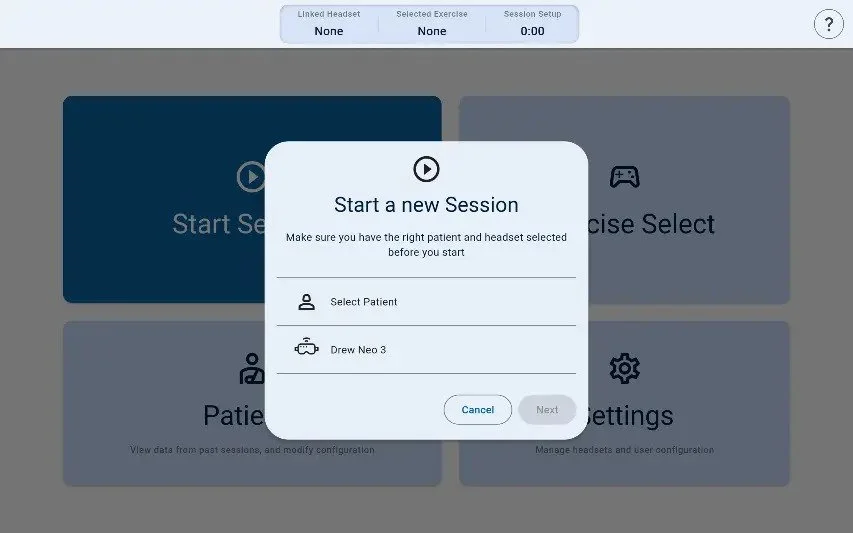
Start Session screen

Returning patient: Scroll or search by name. Tap their name, then skip to Section 2.

New patient: Tap + Create New in the bottom left corner.
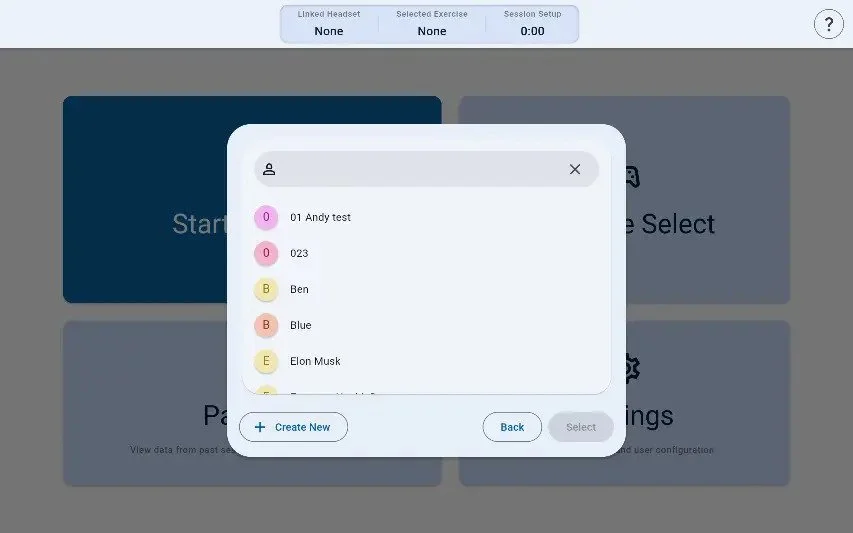
Patient Selection

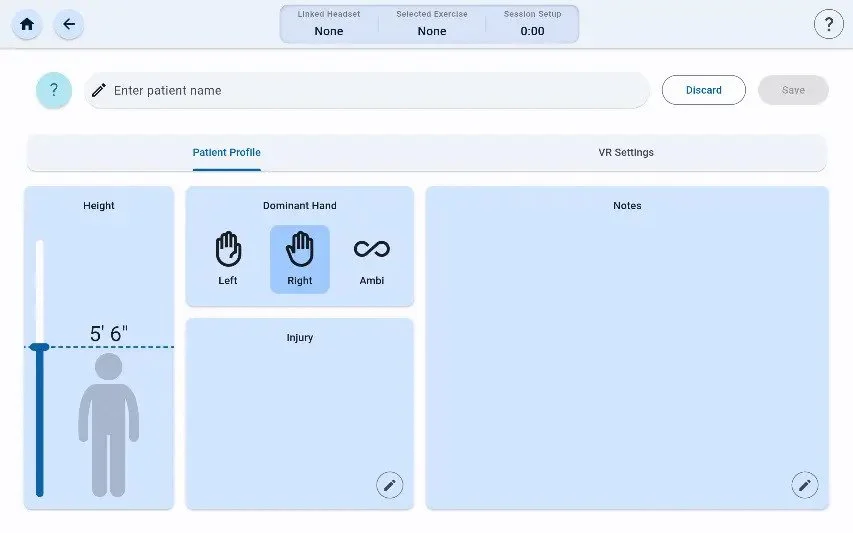
Fill in the patient's details:

Name / Identifier Required
Patient's name or anonymous identifier
Height Required
Used to calibrate the immersive environment
Hand Optional
Dominant hand helps tailor exercise data
Injury / Diagnosis Optional
Improves detail in AI-generated therapy notes
Notes Optional
Any relevant clinical context
Save tipOnce complete, tap SAVE to store the profile for future sessions.
2. Headset Connection
Pair the tablet to the PICO headset

Confirm the correct patient is selected. Then tap the Headset tab beneath the patient's profile.
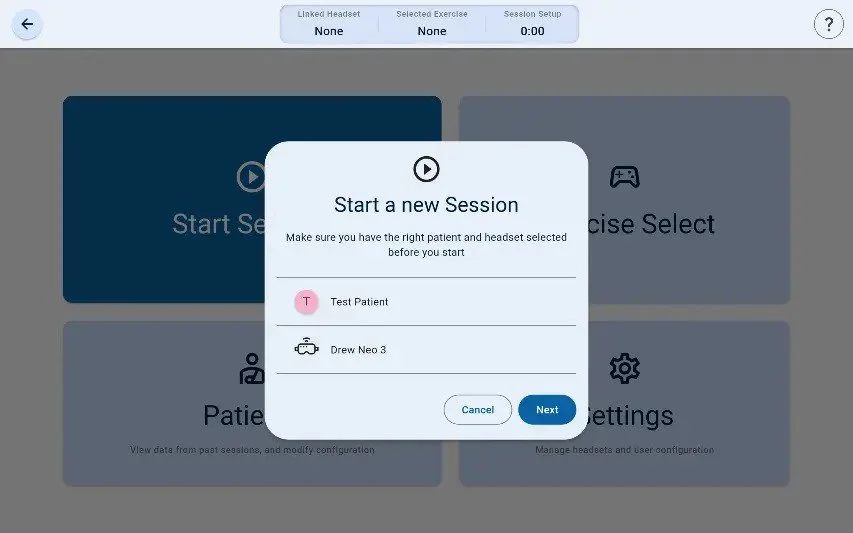
Headset tab

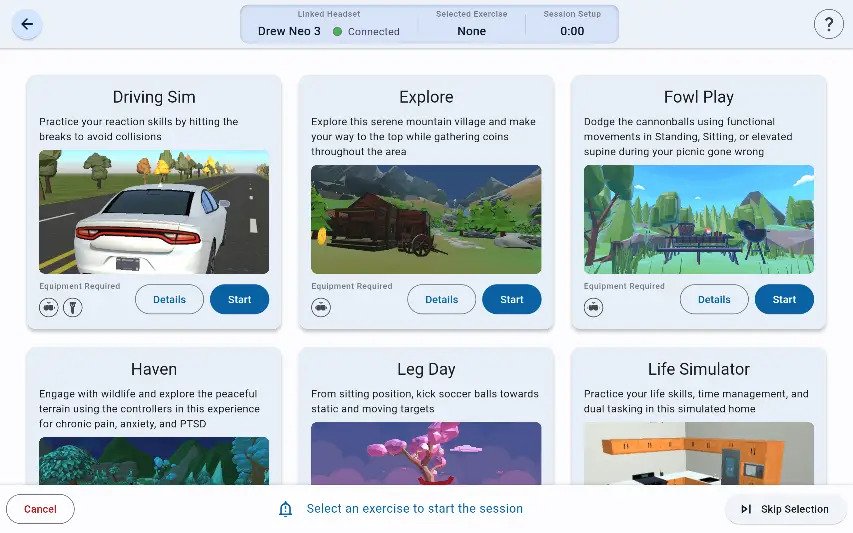
Make sure the headset is powered on, then tap the correct headset name and press NEXT.
Headset selection

Look for the green dot and Connected under Linked Headset.

Connected = Green dotIf you see "Connected" in green, you're ready. No green dot? Ensure the headset is powered on and in range.
3. Play Boundary
Set a safe movement area

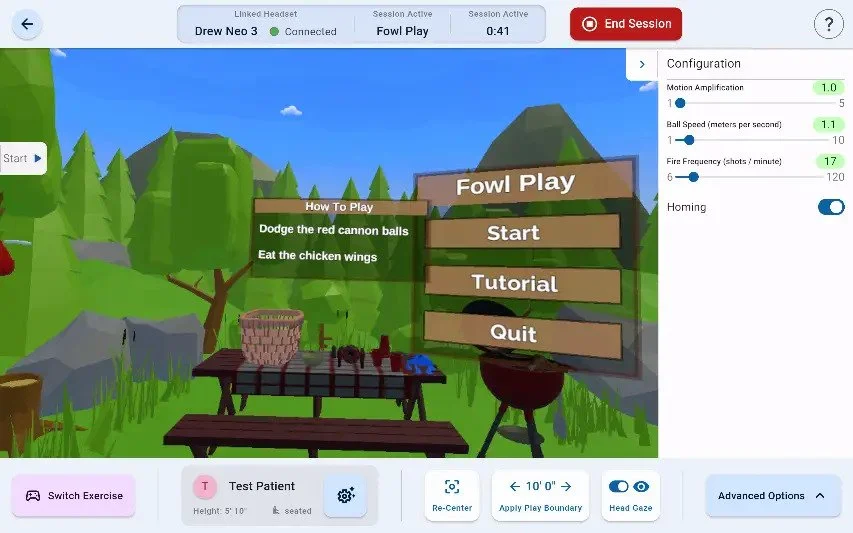
Tap Apply Play Boundary at the bottom of the tablet screen.
Apply Play Boundary

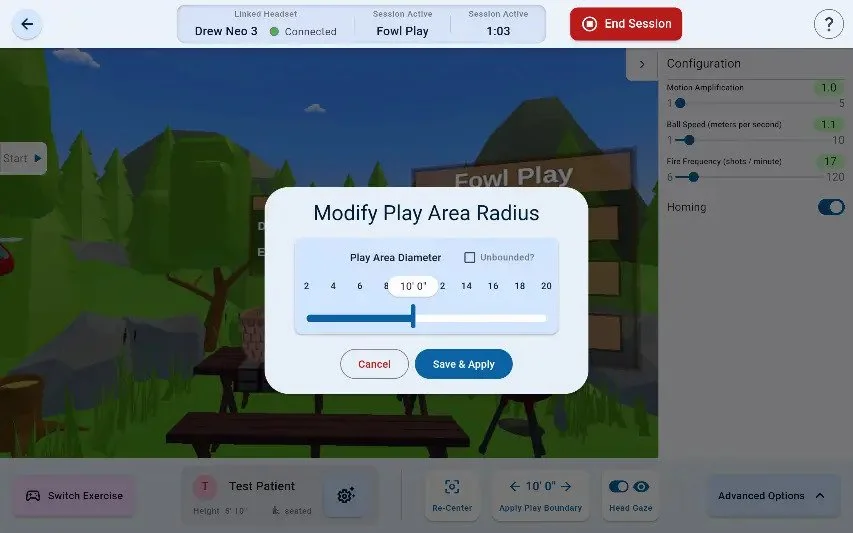
Adjust the slider to set the play area diameter.
Play area adjustment
Patient relocated?The boundary must be reset to match their new location before resuming.

Once adjusted, tap Save and Apply to confirm.
Save and Apply
4. Position and Re-Center
Set seated/standing and align view

Tap the gear icon next to the patient's name. Choose Seated or Standing. Tap Save and Apply.
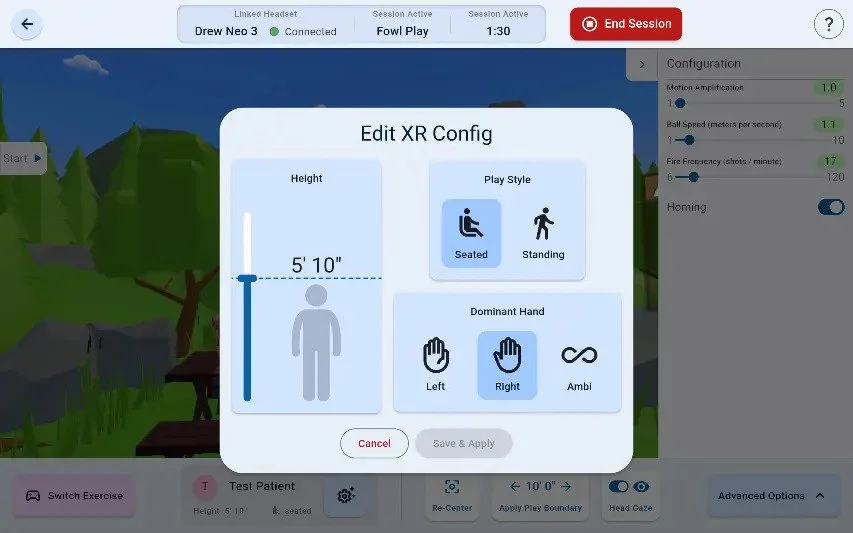
Seated or Standing

Ask the patient to stay still and face forward. Tap Re-Center.

Do this every session.Re-centering ensures a clean forward-facing orientation, especially after removing and replacing the headset.
5. Start Session
Configure the activity and begin therapy

Browse the 35+ therapeutic activities and select one. Set configurations (difficulty, duration, parameters).

Tap Start. Monitor the patient's session on the tablet in real time.

Switching exercises?Tap Switch Exercise in the bottom left. Do NOT tap "End Session" between exercises.
6. Ending the Session
Save all data and therapy notes

Tap the End Session button to conclude.
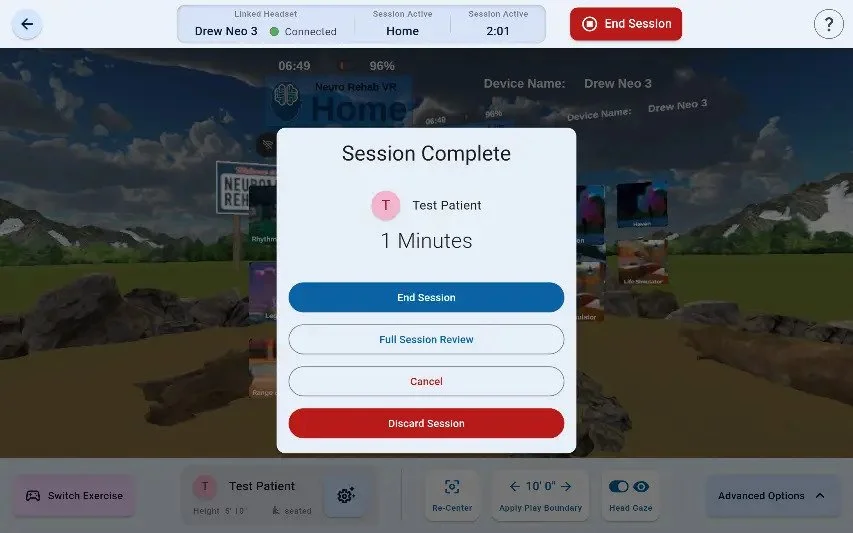
End Session

Choose one:

End Session
Save all metrics and data
Full Session Review
Save and view AI-generated therapy notes now
Discard / Cancel
Resume therapy without ending
Do NOT press End Session between exercises.Only tap End Session when the entire therapy session is complete.
Session review